

Google Chrome 瀏覽器終於登陸 iOS 平台啦!相信有不少讀者朋友已棄用 iOS 內建的 Safari 瀏覽器,改投入 Chrome 的懷抱。但讓大家十分煩惱的是,由於 iOS 的封閉性,無法像 Android 般更換默認瀏覽器,每次點擊鏈接都會自動跳轉至 Safari 載入網頁,除非我們手動複製鏈接到 Chrome 瀏覽器。如果有 Jailbreak 的朋友,就較為方便,能夠安裝第三方的 Cydia 插件更改預設瀏覽器。但像小編這種不玩 Jailbreak 的用家呢?其實大家可以自建一個 Safari 書籤,將書籤網頁更改為一段特定原始碼,即能輕鬆將 Safari 網頁跳轉至 Chrome 瀏覽。雖然沒 Jailbreak 更改默認瀏覽器方便,但總好過沒嘛。
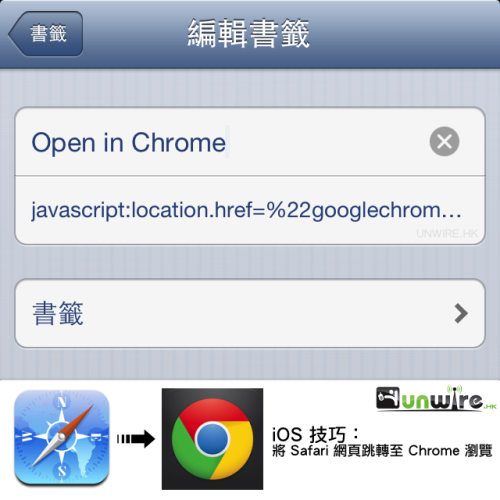
設定方式(以下均在 Safari 內操作):
1) 隨意開啟個網頁,並將其加入書籤,命名為「Open in Chrome」或其他(方便辨認);
2) 進入書籤頁,點擊「編輯」按鈕,選擇剛剛新增的書籤;
3) 將書籤網址更改以下原始碼
javascript:location.href=%22googlechrome%22+location.href.substring(4);
將這段原始碼書籤保存之後,現在 Safari 打開的網頁,只須點擊這個書籤,就能自動跳轉至 Chrome 載入瀏覽,無須再手動複製鏈接,是否方便些呢?
來源:iPhone Hacks
分享到 :
最新影片

Hello Web Admin, I noticed that your On-Page SEO is is missing a few factors, for one you do not use all three H tags in your post, also I notice that you are not using bold or italics properly in your SEO optimization. On-Page SEO means more now than ever since the new Google update: Panda. No longer are backlinks and simply pinging or sending out a RSS feed the key to getting Google PageRank or Alexa Rankings, You now NEED On-Page SEO. So what is good On-Page SEO?First your keyword must appear in the title.Then it must appear in the URL.You have to optimize your keyword and make sure that it has a nice keyword density of 3-5% in your article with relevant LSI (Latent Semantic Indexing). Then you should spread all H1,H2,H3 tags in your article.Your Keyword should appear in your first paragraph and in the last sentence of the page. You should have relevant usage of Bold and italics of your keyword.There should be one internal link to a page on your blog and you should have one image with an alt tag that has your keyword….wait there’s even more Now what if i told you there was a simple WordPress plugin that does all the On-Page SEO, and automatically for you? That’s right AUTOMATICALLY, just watch this 4minute video for more information at. Seo Plugin